
PDFs are still everywhere. Contracts, resumes, invoices, tax documents, ebooks, business reports, and scanned receipts all commonly arrive in PDF format. Opening them is easy enough, but making meaningful changes can be frustrating.
That is partly because the PDF format itself was built for consistency across devices. A document that looks identical on different computers is useful, but that same consistency makes PDFs harder to edit than a typical Word document.
If you’re looking for the best PDF editor, the right choice depends heavily on what you actually need to do. Some people only need to change a few lines of text or sign a document. Others need OCR, secure redaction, form creation, document conversion, and collaboration tools.
This guide compares the top PDF editors available in 2026, including free and paid options. Instead of assuming there is a single winner for everyone, we’ll look at where each tool performs best and who should consider using it.
What Makes a Good PDF Editor?
Before comparing the best PDF editor apps, it’s important to separate PDF editing from simple PDF viewing or annotation.
A PDF reader lets you open, search, and read documents. An annotation tool allows you to highlight text, add comments, draw shapes, or sign a document. A true PDF editor goes further by allowing you to modify existing text, replace images, rearrange pages, create forms, and convert files into formats such as Word or Excel.
When comparing PDF editing software, several features matter more than others.
OCR support
OCR, or optical character recognition, converts scanned documents into searchable and editable text. This is particularly useful when dealing with old contracts, receipts, printed reports, or documents scanned from paper.
Real editing capabilities
Some apps advertise editing features but only allow annotations or overlays. The best PDF editors should let you modify existing text and images without forcing you to rebuild the entire document.
Security and redaction
Security becomes important when documents contain personal, financial, legal, or business information.
There is a major difference between covering sensitive information with a black box and properly redacting it. Visual masking may hide text on the screen while leaving the original content embedded inside the file. Proper redaction and sanitization permanently remove sensitive content, metadata, comments, and other recoverable information.
Platform availability
Your preferred device also matters. Some PDF editors work across Windows, Mac, iOS, Android, and browsers, while others are designed specifically for a single ecosystem.
Pricing
PDF editing software can range from completely free tools to expensive business subscriptions. Some companies charge monthly, others offer annual plans, and a few provide lifetime licenses.
With that in mind, here are the best PDF editors worth considering in 2026.
The 10 Best PDF Editors Compared
| PDF Editor | Best For | Starting Price |
|---|---|---|
| Adobe Acrobat | Overall PDF editing | $12.99/mo |
| Foxit PDF Editor | Businesses and teams | $10.99/mo |
| UPDF | Budget-friendly AI tools | $29.99/year |
| Wondershare PDFelement | AI-assisted editing | $79.99/year |
| PDFgear | Free PDF editing | Free |
| Sejda | Quick online edits | Free |
| PDF Expert | Apple devices | $79.99/year |
| Xodo | Cross-platform annotation | Free |
| EaseUS PDF Editor | Affordable Windows editing | $49.95/year |
| Nitro PDF | Office-style workflows | $15/user/mo |
1. Adobe Acrobat: Best PDF Editor Overall
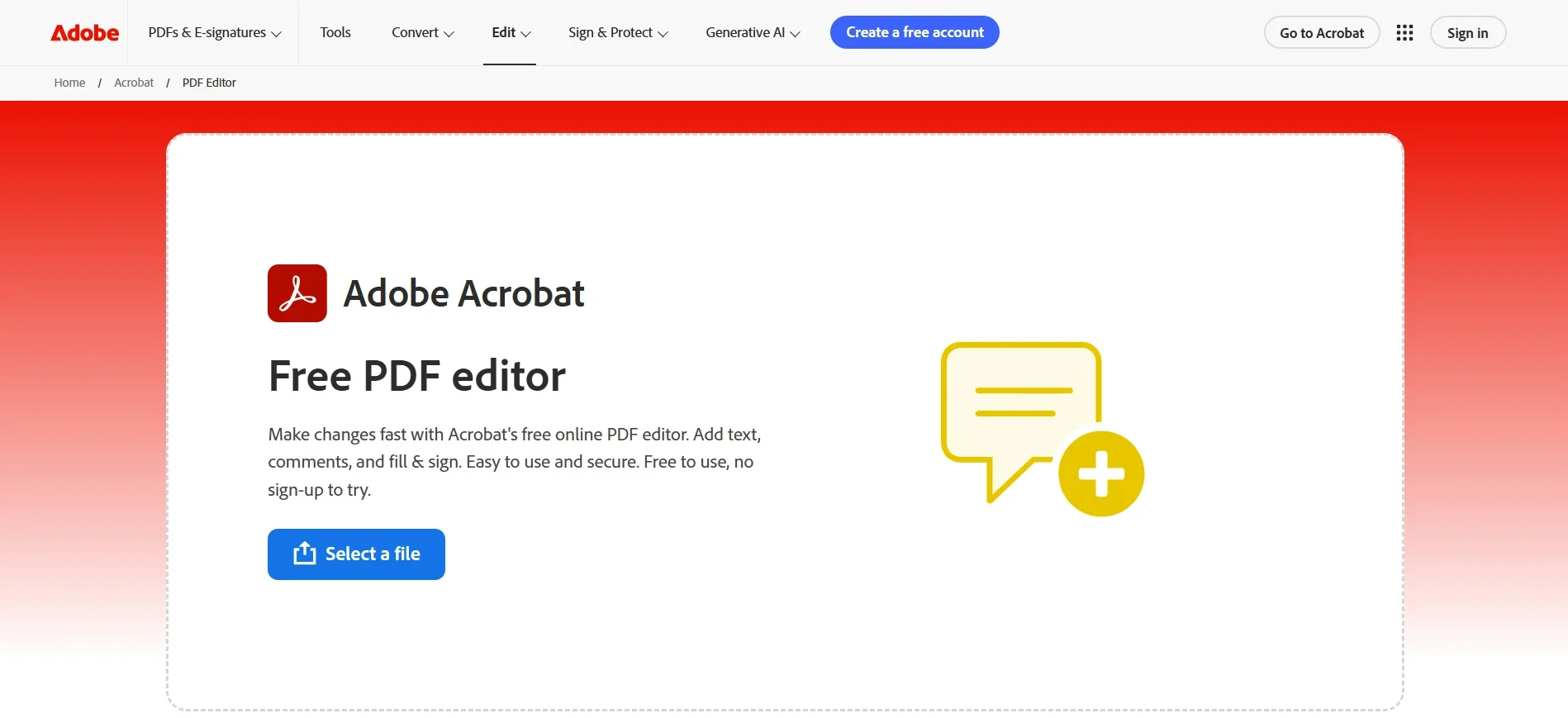
Adobe Acrobat remains the benchmark against which many other PDF editors are compared. Considering Adobe created the technology behind the PDF format, its long-standing dominance in this category is hardly surprising.
Acrobat provides a comprehensive collection of tools for editing text and images, organizing pages, converting documents, filling forms, protecting files, and collecting signatures.
The Standard plan handles most everyday editing requirements. Users can modify text and images, reorganize pages, protect documents with passwords, and work with forms and signatures.
Acrobat Pro expands those capabilities with advanced tools such as document comparison, web form creation, and sanitization features designed to permanently remove hidden information and metadata.
Adobe has also improved the interface compared with older versions. Many tools that were previously buried inside complicated menus are now easier to access through the sidebar and dedicated tools area.
Pricing starts at $12.99 per month for Acrobat Standard when billed annually, while Acrobat Pro costs more and includes additional professional features.
It isn’t the cheapest option available, but for people who work with PDFs every day across multiple devices, Acrobat remains arguably the most complete package. Its support for Windows, Mac, iOS, and Android also makes it practical for users who move between devices.
If your workflow involves collecting signatures regularly, a tool like Sign Plus is also worth comparing with Acrobat’s built-in e-signature functionality.
Best for: Professionals and businesses that need a complete PDF editing solution.
2. Foxit PDF Editor: Best for Business and Teams
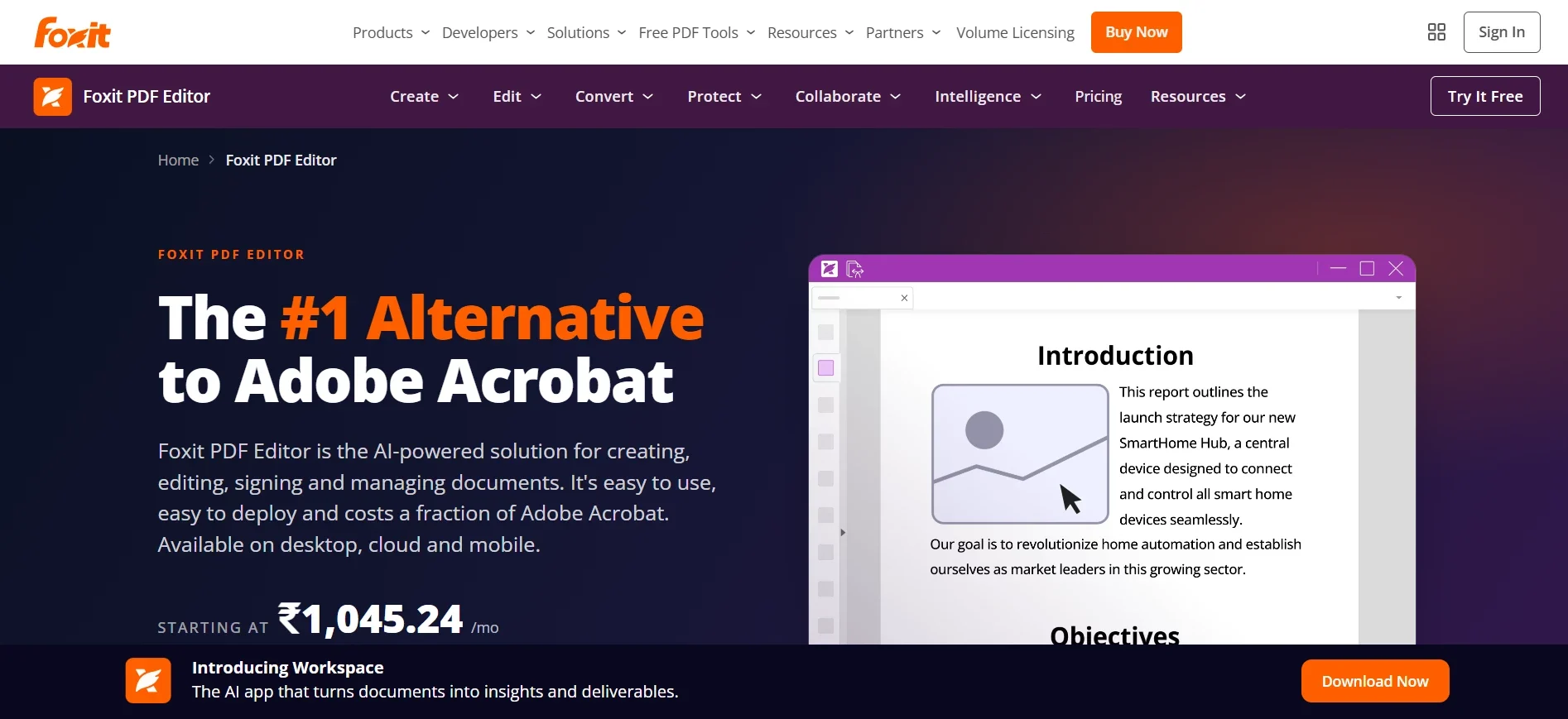
Foxit PDF Editor is a strong alternative for users who want professional editing features without paying Adobe-level prices.
The software includes page organization, text and image editing, OCR, conversion, document protection, and redaction tools. Its interface organizes features into familiar sections such as Edit, Convert, Protect, and Share, making the software relatively easy to navigate.
A major advantage is that OCR is included with the standard editor plan. That can make Foxit particularly attractive for businesses that frequently work with scanned contracts or paper documents.
Foxit also offers strong cross-platform availability. It works across Windows, macOS, iOS, Android, and web environments.
Pricing starts around $10.99 per month when billed annually. Higher-tier plans add features such as mobile editing and document tracking.
For organizations that need reliable PDF editing but don’t necessarily want Adobe’s ecosystem, Foxit is among the best PDF editors for balancing functionality and price.
Best for: Businesses, teams, and professional document workflows.
3. UPDF: Best Budget-Friendly AI PDF Editor
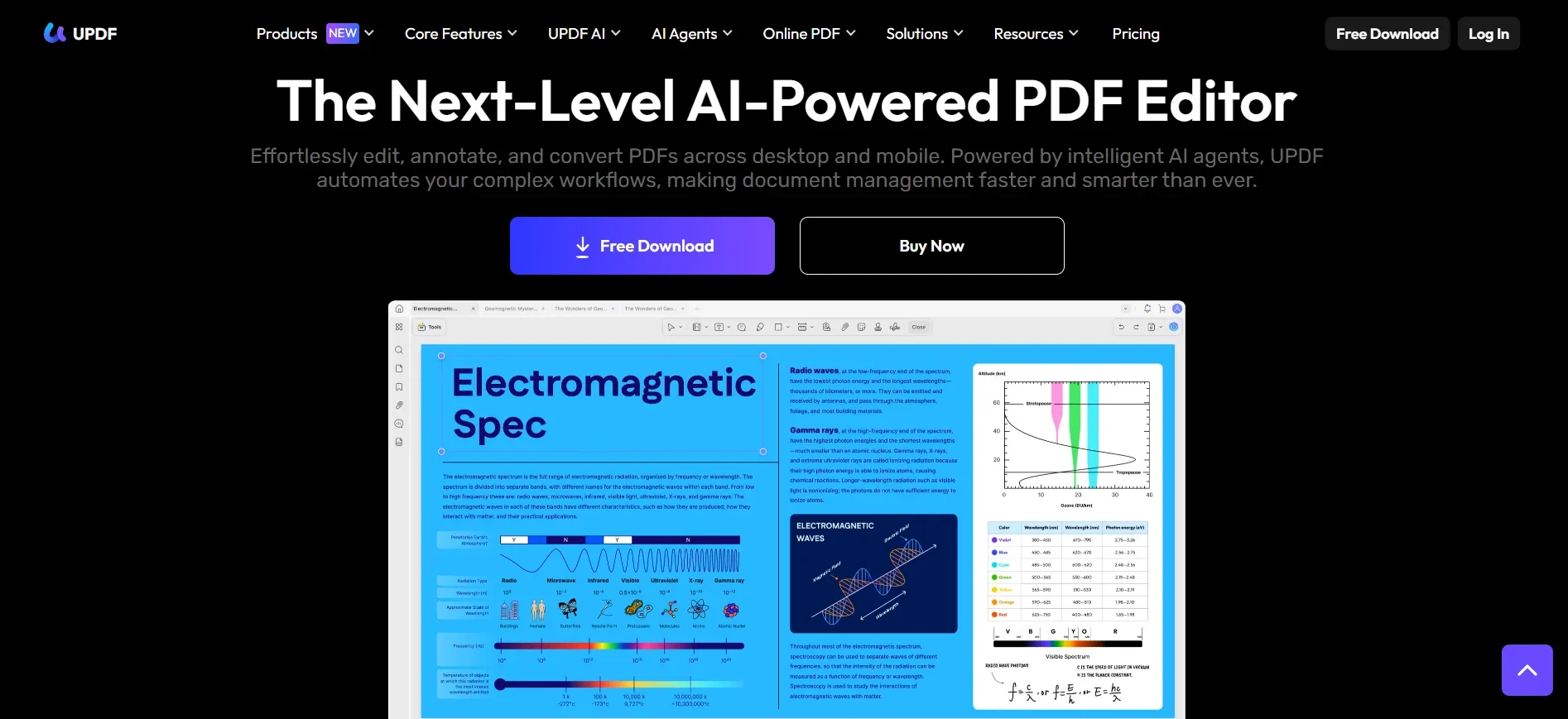
UPDF has become increasingly popular as an affordable alternative to more established PDF editing platforms.
It supports Windows, Mac, iOS, Android, and web use, and its multi-device approach makes it appealing to users who regularly switch between computers and mobile devices.
The feature set includes annotation, OCR, password protection, redaction, page management, forms, document comparison, and file conversion. Users can convert PDFs into formats including Word, Excel, and PowerPoint.
UPDF also includes AI-powered tools that can summarize documents, answer questions about PDF content, and help turn dense information into easier-to-understand formats such as mind maps.
The free version has limitations, including watermarks and restricted AI usage. Paid plans start at around $29.99 per year, making it significantly cheaper than many premium competitors.
For students, freelancers, and smaller businesses, UPDF offers an appealing balance between price and functionality. It may not replace Adobe for highly specialized enterprise workflows, but for everyday professional editing, it provides plenty of value.
Best for: Budget-conscious users who want modern AI features.
4. Wondershare PDFelement: Best for AI-Assisted Editing
Wondershare PDFelement combines traditional PDF editing with a growing collection of AI tools.
Users get the expected features for editing text and images, annotating documents, managing pages, and creating forms. The software’s AI capabilities are what make it stand out.
PDFelement includes an AI chatbot, translation tools, and automated proofreading. For example, users can select text and access translated content without manually copying information into another application.
That can be particularly useful when working with research documents, international business files, or lengthy reports.
The software is available for Windows, Mac, iOS, and Android. Pricing starts at around $79.99 per year for single-platform access, while multi-platform plans cost more.
A free trial is available, which is useful because the AI features may be more valuable to some users than others.
PDFelement is especially worth considering if you want editing software that blends standard PDF tools with AI assistance instead of treating AI as a separate product.
Best for: Users who want AI tools integrated directly into their PDF workflow.
5. PDFgear: Best Free PDF Editor for Windows and Mac
Finding a genuinely useful free PDF editor can be difficult because many supposedly free tools eventually add watermarks, page restrictions, or aggressive upgrade prompts.
PDFgear stands out because it offers a broad range of editing tools without requiring a subscription.
Users can edit text, delete elements, split documents, merge PDFs, remove pages, and add signatures. The software also includes AI-powered capabilities for summarizing, proofreading, translating, and interacting with document content through PDF Copilot.
That makes PDFgear more interesting than a typical free annotation tool.
It works across Windows, Mac, iOS, and Android, giving it better platform coverage than many other free alternatives.
The company may eventually charge for some advanced AI capabilities, but the available features currently make PDFgear one of the strongest free options on this list.
If you regularly need to create PDFs from online content before editing them, this guide to printing and saving web pages as PDF on Chrome and Android can also be useful.
Best for: People looking for capable PDF editing software without a subscription.
6. Sejda: Best for Quick and Simple PDF Edits
Sejda is designed for people who don’t want to install software just to make a small change.
The browser-based editor lets users annotate documents, sign forms, edit certain text and images, and perform other common PDF tasks directly online.
Its biggest advantage is convenience. Open the website, upload the document, make your changes, and download the result.
That said, Sejda is better suited to short editing sessions than complex document work. It does not automatically save progress, so lengthy projects with many edits can be risky.
The free version also includes usage limits. Documents are capped at certain page and file sizes, while desktop users are limited to a specific number of tasks per day.
The paid Desktop + Web plan removes those restrictions and costs around $83 per year.
Sejda works on the web and supports Windows, Mac, and Linux through its desktop application.
Best for: Quick edits when you don’t want to install a full PDF application.
7. PDF Expert: Best PDF Editor for Mac, iPhone, and iPad
PDF Expert is designed specifically for Apple users, and that focus shows throughout the experience.
Developed by Readdle, the app works across Mac, iPhone, and iPad, making it easy to continue working on the same documents across different Apple devices.
The software handles annotation, editing, document organization, signatures, and password protection. It also includes features aimed at improving the reading experience.
Its AI-powered Enhance Scan capability can improve photographed or scanned documents by reducing shadows and correcting visual imperfections. This is particularly useful for documents captured with a smartphone camera.
PDF Expert also offers a dedicated Reading Mode, which can make long documents easier to consume on smaller screens.
Advanced features require a paid subscription, which starts around $79.99 per year.
The major limitation is obvious: PDF Expert is not available for Windows or Android.
For users deeply invested in Apple’s ecosystem, however, it remains among the best PDF editor apps available.
Best for: Mac, iPhone, and iPad users.
8. Xodo: Best Free Cross-Platform PDF Tool
Xodo has developed a strong reputation among people who regularly read, review, and annotate long PDF documents.
Its mobile and web apps make highlighting, underlining, adding comments, and drawing directly on documents relatively straightforward.
The free version is particularly useful for annotation and collaboration, and it does not force users to deal with watermarks or advertisements for basic tasks.
For more advanced requirements, Xodo also offers PDF Studio, a desktop application available for Windows, Mac, and Linux.
PDF Studio includes more powerful features such as OCR, encryption, batch processing, and form creation.
Pricing varies depending on the plan, and perpetual licenses are also available for users who prefer avoiding subscriptions.
Xodo Essentials provides a lighter web-focused option starting at around $4.99 per month.
While Xodo is not necessarily the best choice for heavy text editing, it is excellent for reviewing, marking up, and working with PDFs across multiple devices.
Best for: Cross-platform annotation and document review.
9. EaseUS PDF Editor: Best Affordable Option for Windows
EaseUS PDF Editor is a practical option for Windows users who want solid editing features without paying premium software prices.
The interface places editing, commenting, conversion, and security tools prominently, which makes common tasks easy to access.
OCR support allows users to work with scanned documents, while the paid version adds features including form filling, e-signatures, password protection, and full redaction.
A free version is available, although conversion and OCR capabilities are limited.
The Pro plan costs around $19.95 per month or $49.95 per year. A lifetime option is also available for approximately $79.95, which may appeal to users who prefer paying once rather than maintaining another subscription.
The main drawback is platform support. EaseUS PDF Editor is designed for Windows, so Mac users should consider alternatives such as PDF Expert, UPDF, or Adobe Acrobat.
Best for: Windows users looking for affordable editing software.
10. Nitro PDF: Best for Office-Style Team Workflows
Nitro PDF is aimed primarily at businesses and teams that want professional PDF capabilities in a familiar interface.
The software uses a Microsoft Office-style ribbon layout, which can reduce the learning curve for people already comfortable with Word and Excel.
Nitro includes editing tools, review and markup features, form filling, signing, password protection, permissions, and redaction.
It also supports Bates numbering, a feature particularly relevant to legal and professional document workflows.
Pricing starts at around $15 per user per month, with longer-term licensing options available for teams.
A 14-day free trial allows users to test the software before committing.
Nitro supports Windows, macOS, and iOS, making it suitable for businesses with mixed device environments.
For organizations that want something powerful but familiar, Nitro is a compelling alternative to Acrobat.
Best for: Teams that prefer an Office-style interface and business-focused workflow.
Which Is the Best PDF Editor for You?
Choosing the best PDF editor comes down to the type of work you do.
Adobe Acrobat is still the safest all-around choice if you need advanced editing, security, redaction, and broad platform support.
Foxit PDF Editor makes more sense for businesses that want professional tools at a slightly lower cost.
UPDF offers excellent value for individuals who want modern features and AI assistance without paying premium prices.
PDFgear is the strongest option if your priority is finding a genuinely useful free PDF editor.
PDF Expert is the obvious choice for people who primarily work on Mac, iPhone, and iPad.
Xodo works particularly well for annotation and reviewing documents across different platforms, while Nitro PDF is a strong choice for Office-oriented teams.
The best approach is often to test two or three options before paying for a subscription. Free versions and trials can quickly reveal whether a particular interface and feature set actually fits your workflow.
Mobile support is another factor worth considering. Editing a contract from a phone or tablet is increasingly common, and not every desktop-focused PDF application offers the same experience on mobile devices.
If PDF work is only part of your wider content workflow, you may also be interested in tools for other formats. For example, creators working with action footage can explore the best GoPro video editors or apps to trim video on Android to build out the rest of their content toolkit.
Frequently Asked Questions
Is there a truly free PDF editor?
Yes. PDFgear is one of the strongest completely free options for editing PDFs. Xodo also offers useful free tools for annotation and document review, while Sejda provides free editing with usage limits.
The tradeoff with free software is usually restricted features, page limits, daily limits, or the absence of advanced capabilities such as OCR and secure redaction.
What’s the difference between annotating and editing a PDF?
Annotating adds content on top of the existing document. This includes highlights, comments, shapes, drawings, and signatures.
Editing changes the underlying document itself. A true PDF editor allows you to rewrite existing text, replace images, reorganize pages, and modify the original content.
Do I need OCR in a PDF editor?
You only need OCR if you regularly work with scanned paper documents or image-based PDFs.
OCR converts image-based text into searchable and editable content. If all your documents were originally created digitally and already contain selectable text, OCR may not be important.
Which PDF editor is best for a small business?
Foxit and Nitro are both strong options for small businesses because they combine professional features with team-friendly workflows.
UPDF can be a more affordable choice for smaller budgets, while Adobe Acrobat remains the most comprehensive option for businesses that require advanced security and compliance features.
What is the best PDF editor overall?
Adobe Acrobat remains the best overall choice for users who need the widest range of editing, conversion, security, and document management features.
However, the best PDF editor for your needs may be different. PDFgear is better for free editing, PDF Expert is better for Apple users, and Foxit or Nitro may offer better value for business teams.
Final Thoughts
There is no universal winner among the top PDF editors because different users have very different requirements.
Someone who edits a single form every few weeks does not need the same software as a legal team handling sensitive documents every day. Likewise, an Apple-focused user may get more value from PDF Expert than from a cross-platform platform, while a budget-conscious freelancer might find everything they need in PDFgear or UPDF.
For most professional users, Adobe Acrobat still offers the broadest feature set. But competition has become much stronger, and many of the best PDF editor apps now provide capable alternatives at lower prices.
Before committing to a paid plan, think about the tasks you perform most often. Text editing, OCR, signatures, redaction, collaboration, mobile access, and AI tools all matter differently depending on your workflow.
Testing a few free versions before choosing is usually the easiest way to find the best PDF editor for your specific needs.
