
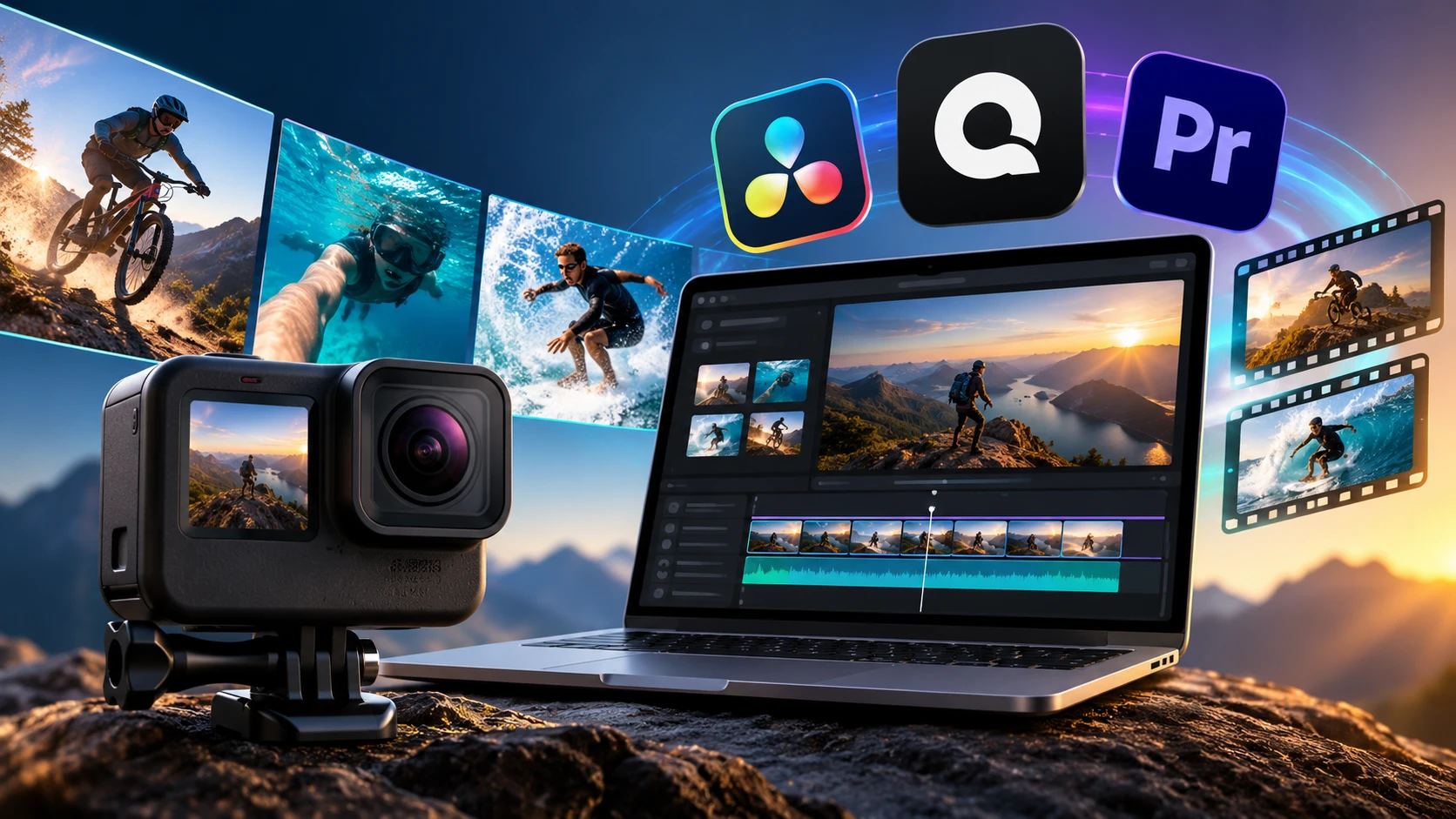
GoPro cameras are great at capturing the action, but raw footage rarely looks ready to publish straight out of the camera. Wide-angle distortion, shaky movement, long clips, high frame rates, and huge 4K or 5.3K files can all make the editing stage more complicated than expected.
That is where the right GoPro video editor makes a difference.
The best GoPro video editing software can turn hours of action-camera footage into polished travel videos, mountain biking edits, YouTube videos, Instagram Reels, and short social clips without making the process unnecessarily difficult. Some editors focus on automatic editing, while others provide detailed color grading, stabilization, audio editing, and effects.
We compared 10 popular options based on their published features, pricing, ease of use, and suitability for GoPro footage. Whether you want something simple for occasional edits or powerful GoPro editing software for regular content creation, there is an option here worth considering.
What to Look for in GoPro Video Editing Software
GoPro footage can be demanding. High-resolution files require more processing power, while action footage often needs stabilization, color correction, cropping, and lens correction before it looks its best.
Before choosing a GoPro video editor, consider these factors:
Resolution and frame-rate support: Make sure the software can handle the resolution and frame rates you actually record with. This is particularly important for 4K and 5.3K footage.
Stabilization: Even footage recorded with HyperSmooth can sometimes benefit from additional stabilization or horizon correction.
Color correction: Action-camera footage can need adjustments to exposure, contrast, saturation, highlights, and shadows.
Lens correction: Wide-angle GoPro footage can have noticeable distortion. A good editor should make correcting it straightforward.
Ease of use: Advanced software can do more, but a complicated interface may not be worthwhile if you only edit a few videos a year.
Export options: Check whether the editor supports the resolutions, aspect ratios, and formats you need for YouTube, Instagram, TikTok, or other platforms.
Price: Free editors can be surprisingly capable. Paid software makes more sense when you need advanced features or edit frequently.
1. GoPro Quik
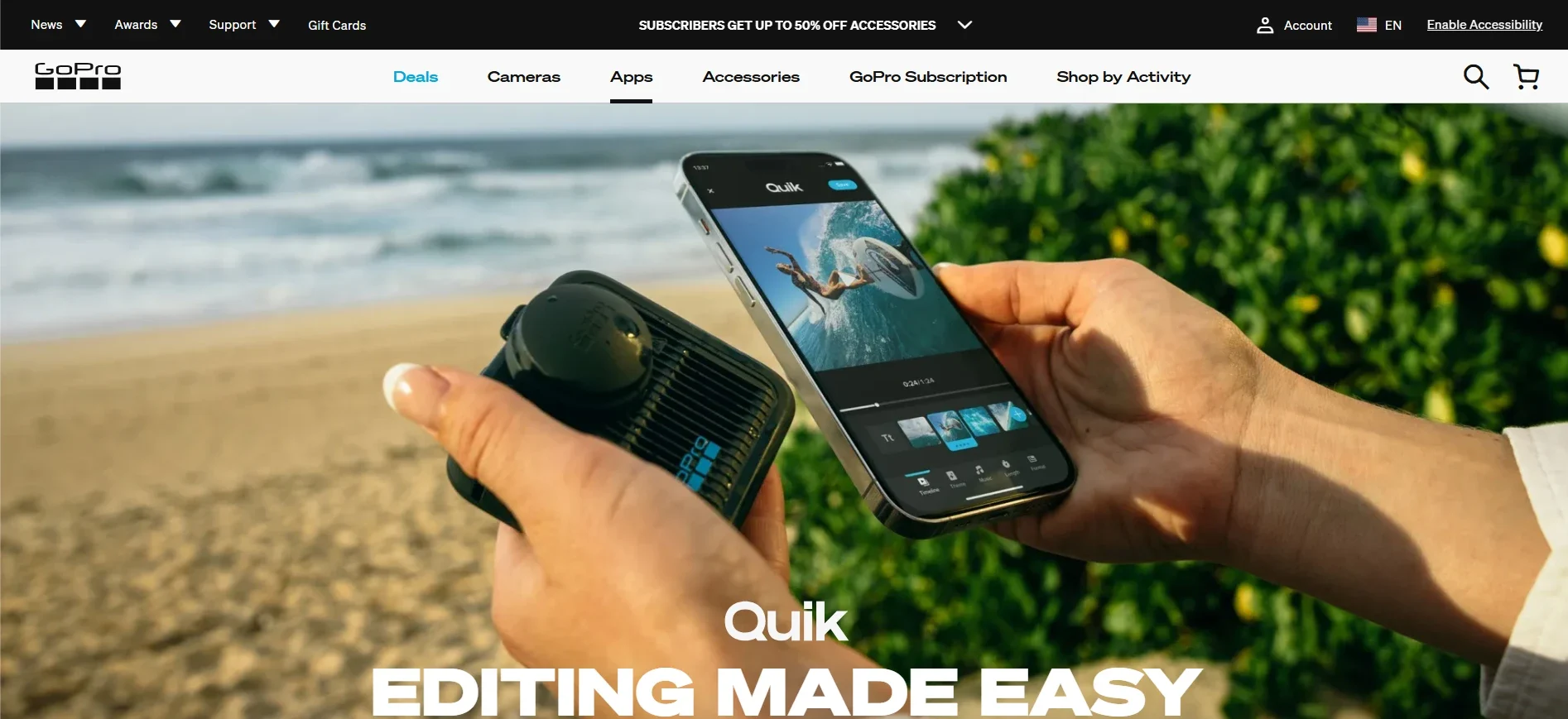
GoPro Quik is the natural starting point for anyone looking for the best GoPro editing software with minimal effort. As GoPro’s official app, Quik is designed specifically around GoPro footage and makes it possible to go from imported clips to a finished video without learning a traditional editing timeline.
Its automatic editing tools analyze your footage and can synchronize cuts with music, apply transitions, and create a finished sequence from selected clips. GoPro’s Studio Edit workflow also gives users a choice between Auto Edit and Edit Yourself modes, so you can start automatically and take more control when necessary.
The mobile app is free on iOS and Android, while GoPro also offers a macOS desktop version. Premium and Premium+ subscriptions add features such as cloud storage and enhanced stabilization capabilities.
Quik is particularly useful for travelers, casual creators, and GoPro owners who want to publish footage quickly. It does not offer the same depth as professional desktop editors, but that is also part of its appeal.
Best for: Beginners, travelers, and fast automatic edits.
2. DaVinci Resolve
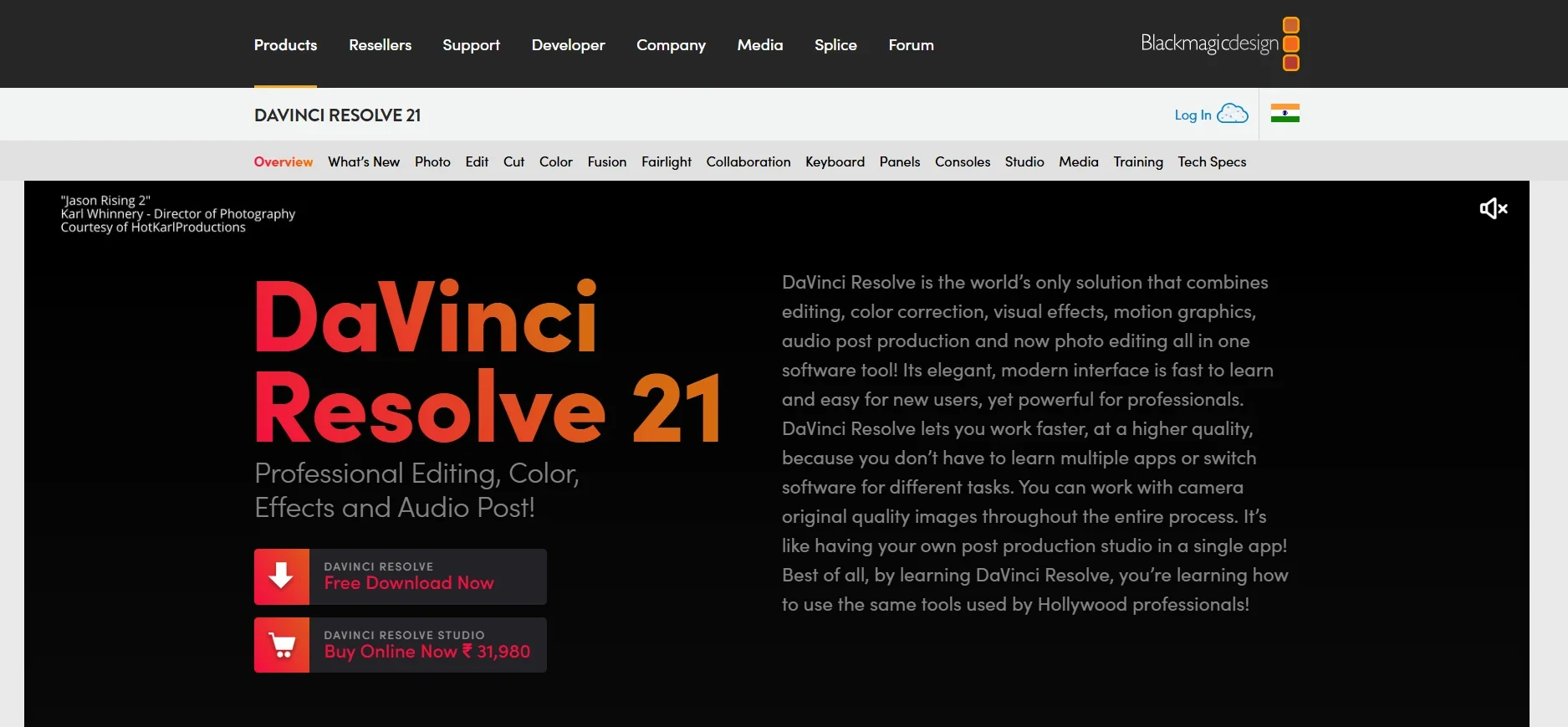
DaVinci Resolve is a strong choice for creators looking for the best GoPro video editor without paying for professional editing software. Its free version provides a remarkably complete editing environment, including video editing, color correction, visual effects, and audio production.
For GoPro footage, the color tools are particularly useful. Action-camera clips can benefit significantly from careful exposure and color adjustments, especially when you are trying to create a consistent look across footage recorded in different lighting conditions.
Resolve also includes professional audio tools through its Fairlight workspace. That lets you clean up dialogue, adjust music, and work on sound without leaving the application. It effectively functions as full audio editing software alongside its video capabilities.
The free version is powerful enough for many creators. DaVinci Resolve Studio is available as a one-time purchase and adds additional effects, AI-powered tools, higher-end format support, and other professional features.
The biggest drawback is the learning curve. Resolve is considerably more complex than Quik or iMovie, particularly if you want to use its color, Fusion, and Fairlight tools extensively.
Best for: Serious creators, color grading, and advanced editing.
3. Adobe Premiere
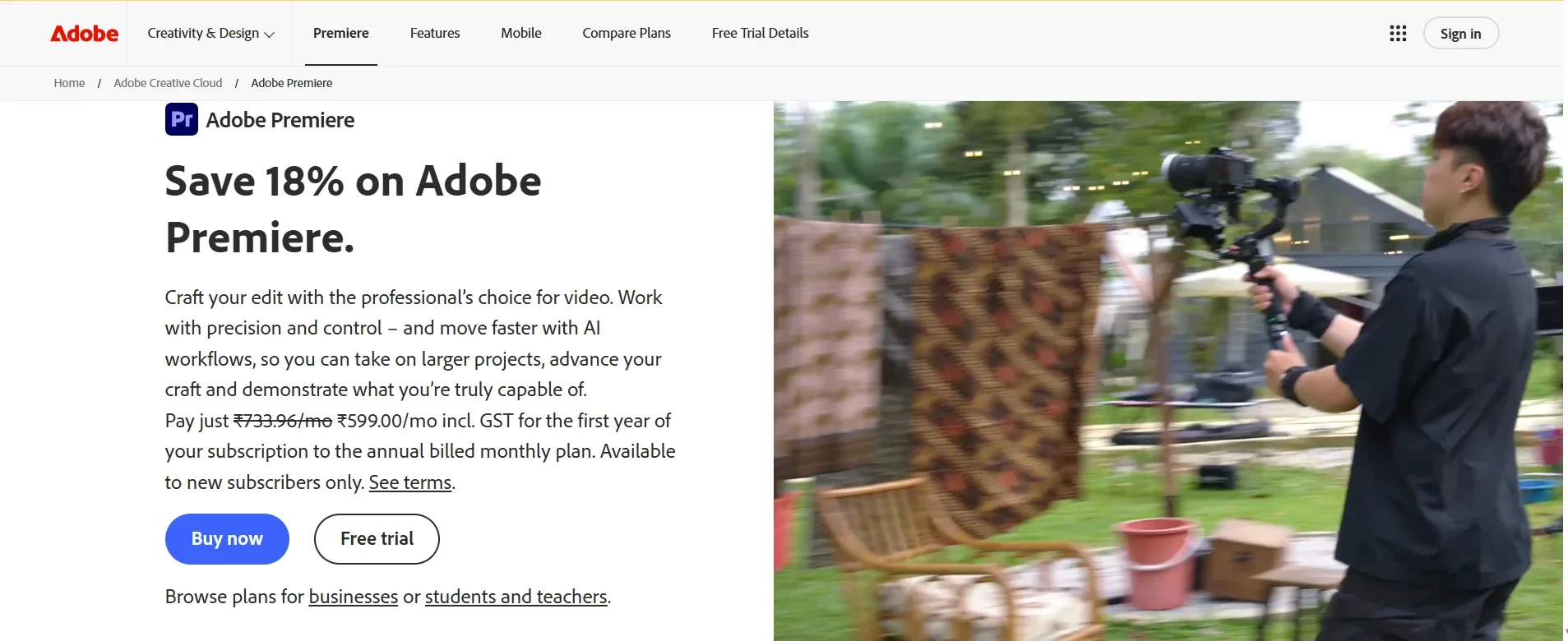
Adobe Premiere, previously known as Premiere Pro, remains a major option for professional video editing. It is particularly attractive to creators who need advanced editing tools, extensive format support, collaboration features, and integration with other Adobe applications.
For GoPro users, Premiere provides tools for stabilization, color adjustment, multicamera editing, effects, audio work, and detailed timeline editing. Its Warp Stabilizer can be useful when additional stabilization is needed beyond what was captured in-camera.
The Adobe ecosystem is another major advantage. Editors who already use Photoshop, After Effects, or other Creative Cloud applications can move between tools as part of the same workflow.
The main disadvantage is the subscription model. Premiere does not offer the same type of free long-term option as DaVinci Resolve, and the interface can feel overwhelming when you are simply trying to trim a few action-camera clips.
For professional YouTubers, filmmakers, agencies, and creators who need a highly flexible editing environment, however, Premiere remains a powerful choice.
Best for: Professional workflows and Adobe Creative Cloud users.
4. Wondershare Filmora
Filmora occupies a useful middle ground between beginner-friendly apps and professional editing suites. It provides a traditional timeline while keeping the interface relatively approachable for people who do not want to spend weeks learning video editing.
The current software places considerable emphasis on AI features. Tools include automatic short-clip creation, auto-captioning, translation, background-related features, and AI-assisted content generation. These features can be useful when turning longer GoPro recordings into shorter social-media videos.
Filmora also supports standard editing functions such as keyframing, transitions, effects, and timeline-based editing.
There is a 30-day trial, followed by subscription and perpetual-license options depending on the plan and platform. Some AI functions use separate AI credits, so users who expect to rely heavily on generative features should pay attention to the included allowance.
Filmora is a good fit for GoPro vloggers and creators who want more control than Quik provides without jumping directly into software as complex as Resolve or Premiere.
Best for: Intermediate editors and AI-assisted video creation.
5. CapCut
CapCut has become particularly popular among creators producing short-form content. Its mobile-first approach makes it a convenient choice when your main goal is turning GoPro footage into TikTok videos, Instagram Reels, Shorts, or other vertical content.
The desktop version provides a more traditional editing environment with multiple tracks, keyframes, chroma key, effects, and AI-powered features. The mobile version emphasizes speed and convenience, while the browser-based editor provides another way to work without installing desktop software.
CapCut’s pricing structure includes free and paid tiers, with some advanced features restricted to Pro users. Depending on the feature and content used, free exports can also have limitations.
For users who primarily edit on their phone, CapCut is among the easiest ways to transform GoPro clips into social-ready videos. It is less compelling for someone who needs detailed professional color grading or complex long-form projects.
Best for: Social media videos and mobile editing.
6. iMovie
For Apple users, iMovie remains an excellent free option. It comes at no additional cost on compatible Macs, iPhones, and iPads, making it particularly attractive to GoPro owners who already use Apple hardware.
The interface is designed for simplicity. You can import clips, arrange them on a timeline, trim unwanted sections, add transitions, apply filters, and export a finished video without dealing with a professional editing environment.
iMovie also includes features such as Magic Movie and Storyboards, which can help beginners create rough edits quickly before making manual adjustments. Projects can move between Apple devices, making it practical for people who start an edit on an iPhone and finish it on a Mac.
There are limitations. iMovie does not provide the advanced color grading, motion tracking, effects, and multicamera capabilities available in professional editors. It is also unavailable on Windows and Android.
For occasional GoPro editing on Apple devices, though, it remains difficult to beat for simplicity and price.
Best for: Apple users and beginners.
7. VideoProc Vlogger
VideoProc Vlogger is worth considering if you want free GoPro editing software with more traditional editing controls. The software has remained available without a paid subscription and provides a surprisingly broad collection of tools.
It includes a multi-track timeline, keyframes, speed ramping, motion tracking, chroma key, 4K editing, HDR color tools, and other functions commonly associated with more expensive editors.
That makes it particularly interesting for GoPro users who want to move beyond automatic edits but do not want to pay a monthly subscription.
VideoProc Vlogger is also part of the wider VideoProc ecosystem. Its relationship with video converter software from the same company can be useful if your workflow involves converting files before editing.
The software does not provide the same stock-media ecosystem or polished template experience found in some commercial competitors. Still, if your priority is capable free editing rather than flashy extras, it deserves a place on the shortlist.
Best for: Free desktop editing with advanced controls.
8. VSDC Video Editor
VSDC Video Editor takes a somewhat different approach to video editing. Its non-linear workflow allows you to position video clips, graphics, text, and other objects freely within a project instead of relying exclusively on a conventional sequence.
That flexibility can be useful for GoPro projects involving picture-in-picture footage, overlays, split screens, maps, titles, and multiple visual elements.
The free version supports 4K video and includes numerous effects, filters, color tools, and other editing features. There is no watermark on standard free exports, which makes it appealing to users who want genuinely usable free GoPro video editing software.
The Pro version adds capabilities such as hardware acceleration, motion tracking, HDR-related export options, and advanced masking.
VSDC is currently focused on Windows, and its interface can take some time to understand. The dense collection of controls may feel intimidating to first-time editors. Once familiar, however, it provides considerable functionality for its price.
Best for: Windows users who want powerful free editing tools.
9. Clipchamp
Microsoft Clipchamp is another beginner-friendly option, particularly for Windows users. It operates through a browser and is also integrated into Windows 11, making it easy to access without installing a traditional professional editing application.
The free version supports 1080p exports without a watermark and provides basic timeline editing, screen recording, webcam overlays, and automatic captions.
Premium access adds 4K export and a larger collection of stock assets. Users who already subscribe to Microsoft 365 may also find Clipchamp more attractive because premium functionality is included with certain Microsoft 365 plans.
Clipchamp is best suited to straightforward GoPro projects. You can trim clips, combine footage, add titles, transitions, and music, and produce a finished video without much technical knowledge.
It is not intended to replace Resolve or Premiere for advanced color grading, sophisticated effects, or large professional productions. For basic edits, its accessibility is the main advantage.
Best for: Windows users and simple browser-based editing.
10. Movavi Video Editor
Movavi Video Editor focuses on making advanced-looking edits accessible to less experienced users. Its interface is considerably easier to approach than professional software, while still offering useful tools for cleaning up and enhancing GoPro footage.
The 2026 release emphasizes AI-assisted features, including background removal, noise reduction, and motion tracking. Noise reduction can be particularly useful for action-camera footage where wind and environmental noise can interfere with dialogue.
Movavi offers both subscription and one-time purchase options, depending on the version. A trial is also available, although trial exports may include a watermark.
The software is a practical option for creators who regularly produce YouTube videos, tutorials, travel content, or other projects but do not need the depth of Premiere or DaVinci Resolve.
Best for: Beginners who want AI-assisted editing and a simple interface.
Which GoPro Video Editor Should You Choose?
The best GoPro video editor depends less on the camera you own and more on what you want to do with the footage.
If speed is your priority, GoPro Quik is the easiest starting point. Its automatic editing workflow means you can spend less time arranging clips and more time sharing them.
If you want professional-level control without an ongoing subscription, DaVinci Resolve is arguably the strongest option. Its free version provides enough editing, color, effects, and audio functionality for serious projects.
Adobe Premiere makes more sense when you need professional collaboration or already use Adobe’s Creative Cloud tools.
For a middle ground between simplicity and advanced functionality, Filmora and Movavi Video Editor are worth considering.
Creators focused on short-form social content may prefer CapCut, while Apple users looking for a completely free and simple solution can start with iMovie.
For Windows users who specifically want free software, VideoProc Vlogger and VSDC Video Editor offer more editing depth than many beginner-focused applications.
Frequently Asked Questions About GoPro Editing Software
What is the best GoPro video editor for beginners?
GoPro Quik is arguably the easiest starting point because it is designed around GoPro footage and can automate much of the editing process. iMovie is another strong choice for Apple users who want a simple timeline editor. If you want to learn more advanced editing from the beginning, DaVinci Resolve is worth considering, although it requires more time to learn.
What is the best free GoPro editing software?
DaVinci Resolve, VideoProc Vlogger, VSDC Video Editor, and iMovie all provide strong free options, depending on your operating system and editing requirements. Quik is also useful for quick GoPro edits, particularly when automatic editing is more important than detailed manual control.
Is DaVinci Resolve good for GoPro videos?
Yes. DaVinci Resolve is particularly useful for GoPro footage because it combines editing, color correction, effects, and audio production in a single application. Its color tools are helpful when you want to get more from high-quality GoPro footage rather than simply applying a preset.
Can I edit GoPro videos on my phone?
Yes. GoPro Quik and CapCut are designed to work well on mobile devices and can take footage from import through editing and export without requiring a computer.
Mobile editing is ideal for shorter clips and social media content. Desktop software remains preferable for long projects, detailed color correction, and complex effects.
Can GoPro editing software correct fisheye distortion?
Yes. GoPro’s own Quik ecosystem is particularly well suited to correcting footage captured with GoPro cameras. Other editors, including DaVinci Resolve, Premiere, and Filmora, also provide lens correction tools. Depending on the application, you may need to select an appropriate camera or lens profile and adjust the correction manually.
Final Verdict
There is no single best GoPro video editing software for every creator.
GoPro Quik wins for convenience. DaVinci Resolve stands out for advanced free editing. Adobe Premiere is built for professional workflows, while Filmora and Movavi provide a more approachable middle ground. CapCut is especially useful for short-form content, and iMovie remains a strong free choice for Apple users.
The most important thing is to choose software that matches the way you actually shoot and edit. If you only need to turn weekend footage into a two-minute highlight video, a complicated professional editor may slow you down rather than improve the result. If you’re publishing regularly and want complete control over color, audio, stabilization, and effects, investing time in a more advanced editor can pay off quickly.
Start with the simplest tool that gives you the control you need. You can always move to more powerful GoPro video editing software as your projects become more ambitious.
